SurveyGold
Survey Everywhere
  • Home
  • Get Started
  • Solutions
    • Who Uses SurveyGold
    • Survey Tools >
      • Email Surveys
      • In-Person Surveys
      • Kiosk Surveys
      • Mobile Surveys
      • Online Surveys
      • Paper Surveys
    • Survey Assistance
    • Students
    • Individuals
    • Business
    • Non-Profit/Government
    • Teachers/Students
  • Products
    • SurveyGold Application >
      • Email Surveys
      • In-Person Surveys
      • Kiosk Surveys
      • Mobile Surveys
      • Online Surveys
      • Paper Surveys
      • Key Benefits and Features
      • FAQs
      • Customers
      • Reviews
    • SurveyGold Online Services >
      • FAQs
    • SurveyGold Mobile >
      • Mobile Surveys
      • Get It Now
      • FAQs
    • Product Road Map
  • Subscribe
    • Subscription Plans
    • How To Purchase
    • Discounts
    • FAQs
  • Support
    • Contact Us
    • Knowledge Base
    • Online Services Status
    • Solution Updates
    • Suggestions
    • Tutorials
    • User Guide
    • Search
  • Blog

SurveyGold: 2015 Survey Software Excellence Award (Source: TopTenREVIEWS)

3/23/2015

 
SurveyGold garnered the Excellence Award for the fourth year year in a row according to a 2015 review of survey software by TopTenREVIEWS. SurveyGold also received a 9.48 out of 10 rating and was recognized as the "Best Intuitive Survey Software". Their verdict is:
SurveyGold is intuitive survey software because it works similarly to Windows Explorer. It is easy to learn, and its survey-creation tools make building and analyzing questionnaires a simple process.
We are not affiliated with TopTenREVIEWS in any way. The complete review is available on the TopTenREVIEWS website.
Read the TopTenREVIEWS Review of SurveyGold

How To Add an Image or Hyperlink to an Online Survey Question

12/5/2014

 
SurveyGold provides the ability to display an image alongside a response choice. Setting this up is easily done within the SurveyGold application.

However, if you require that an image or hyperlink be included in the actual question text (as opposed to being displayed alongside a response choice), you can do this by adding a little bit of HyperText Markup Language (HTML) to your question text or instruction text. Using HTML you can easily put an image or a link or any other HTML effects in the question text of an online survey form. 

Space Shuttle Survey Example

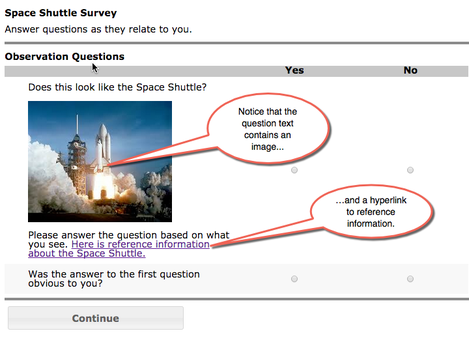
For an example of how this is done, take a look at the first question in our fictitious Space Shuttle Survey. Notice that the question text contains an image of the Space Shuttle. It also contains a hyperlink to reference information regarding the Space Shuttle.

This was accomplished by entering question text via the Setup Survey tab in the SurveyGold application that included some HTML as follows:

Does this look like the Space Shuttle?<br /><br /><img src="http://upload.wikimedia.org/wikipedia/commons/thumb/4/41/Space_Shuttle_Columbia_launching.jpg/220px-Space_Shuttle_Columbia_launching.jpg"><br /><br/>Please answer the question based on what you see. <a href="http://en.wikipedia.org/wiki/Space_Shuttle" target="_blank">Here is reference information about the Space Shuttle.</a>
View the Space Shuttle Survey
Picture
If you are unfamiliar with HTML, this can look daunting. So, let's unpack this. It's actually very straightforward.

How to Add an Image

Use an image tag <img src="URL_FOR_IMAGE_GOES_HERE"> in the question text to include the image. Refer to W3Schools for more information on the img tag.

For our example survey, we used Google to locate a URL for a public domain image of the Space Shuttle. The URL is http://upload.wikimedia.org/wikipedia/commons/thumb/4/41/Space_Shuttle_Columbia_launching.jpg/220px-Space_Shuttle_Columbia_launching.jpg.  We us

Use a couple of line break tags <br /><br /> in the question text before the image and after the image to set it apart visually. Refer to W3Schools for more information the br tag. 

How to Add a Hyperlink

Use an anchor tag <a href="URL_FOR_CONTENT_GOES_HERE" target="_blank">TEXT GOES HERE</a> in the question text to include the link to the desired content.  The Refer to W3Schools for more information on the a tag.

For our example survey, we used Google to locate a URL for a Wikipedia article to serve as reference data.  The URL is http://en.wikipedia.org/wiki/Space_Shuttle. and was placed in the location URL_FOR_CONTENT_GOES_HERE.  The text Here is reference information about the Space Shuttle. was placed where TEXT GOES HERE so that it appears properly in the question text as a hyperlink.

How to Eliminate HTML from Question Text When Viewing Results

If you use HTML in your question text, there is one other consideration that pertains to viewing survey results. SurveyGold normally uses the question text when displaying survey results in the View Results and Analyze Results tabs. When HTML is included in the question text, this will produce very unsightly question text when displaying survey results. 

To resolve this, enter the question text that you want to see when displaying survey results in the Chart Title tab in the question properties sheet. When SurveyGold detects a chart title, it displays that as the question text when producing reports and viewing results. This results in reports and charts don't have all the HTML debris contained in them when displaying the question text.

For our example, we specified the following Chart Title: Does this look like the Space Shuttle?

Software Update: Online Survey and Application Usability Improvements

9/24/2014

 
We have been busy the past few months producing software updates. Here are the highlights
  • Online Surveys: Removed the unsightly gray background from respondent data prompts.
  • Spell-Checker: Saving a new word to your user-defined dictionary resulted in an error message: "Can't add word to User Dictionary". This issue has been resolved.
  • Spell-Checker: An updated spell-checker is provided in this release.
  • SurveyGold Application: Some customers reported having to elevate Windows security to "administrator" privilege level in order to run the application. This issue has been resolved.
  • Setup Survey: The Save Survey As Word File action sometimes produced response choices without checkboxes and sometimes displayed error messages. These issues have been resolved.
  • Analyze Results: The ability to display percentages in the Graph Cross-Tab Questions action in the Analyze Results tab is now supported. This feature is enabled via a checkbox option when selecting the two questions.

How To Acquire the Update

To acquire SurveyGold application updates:
  1. Click About in the SurveyGold application tool bar. 
  2. Then click Update SurveyGold. 

A software update dialog appears and the process begins by downloading the software directly from the SurveyGold software update server. After the software update files are downloaded to your computer, the process automatically installs the software updates. Normally, this entire process only takes a moment. Your data is not affected in any way as a result of software updates.

How To Enter Survey Responses That Occurred in the Past

9/3/2014

 
Normally, when survey responses are recorded in the Conduct Survey tab of the SurveyGold application, the current "date of entry" is recorded in the response record. However, SurveyGold also provides the optional ability to specify a specific date (e.g., a date in the past) for which the response occurred. This feature (enabled via the "Confirm response date upon Conclude Survey" SurveyGold preference setting) provides the ability to accurately record time-sensitive responses long after the survey was conducted while reflecting the date and time the past that the response actually occurred.

Furthermore, SurveyGold provides the ability to view a subset of all respondents to a given survey based upon any response to any question or a response date range or both. This "filter" feature allows you the ability to view respondents from a particular time period. It is then possible to create graphs and reports based upon the respondents in the filtered set of respondents.

End-of-Life and End-of-Support for SurveyGold Versions 7, 6 and 5

6/24/2014

 
Golden Hills Software, Inc. announces the end-of-life and end-of-support of the SurveyGold version 7, version 6 and version 5 software applications. These versions are considered legacy versions as sales and maintenance of these versions ceased many years ago.

This announcement does not apply to currently offered SurveyGold application software or SurveyGold subscription services.

December 7, 2006: Last Day to Order
The last day to order the SurveyGold 7 products was December 7, 2006.

December 7, 2006: End of Software Maintenance Releases
Golden Hills Software, Inc. no longer develops, repairs, maintains, or tests the version 7, version 6 or version 5 product software after this date. Software defects found in these versions are addressed by migrating to the current SurveyGold application.

June 24, 2014: Last Date of Support
The last date to receive service and support for the product. After this date, all support services for the product are unavailable, and the product becomes obsolete.

Software Update: Usability Improvements and New Graph Features

6/12/2014

 
We just added usability improvements and more flexibility in how graphs appear in reports and in the SurveyGold application.

Button Bars in View Results and Analyze Results

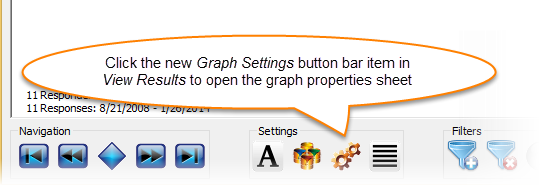
We have introduced brand new button bars and enhanced existing button bars throughout the View Results and Analyze Results tabs. This makes it easy to discover and access SurveyGold application features that were formerly only accessible by right-clicking on a graph or report.
Picture

Enhanced Graph Properties

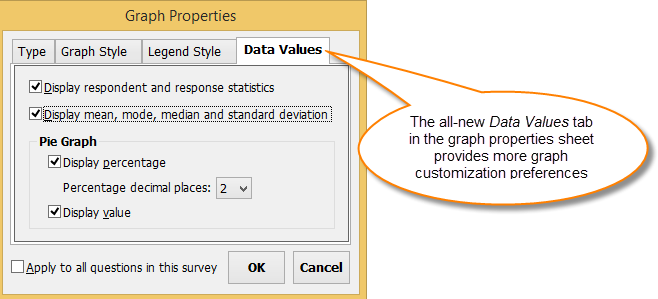
Also, in response to feedback from SurveyGold users, we enhanced the graph properties sheet in View Results tab by adding a Data Values tab that provides more visual preferences for graphs:
  • Hide or show percentages in a pie graph
  • Set the decimal points displayed in percentages
  • Hide or show values in a pie graph
  • Hide or show respondent and response counts
  • Hide or show mean, mode, median, min, max and standard deviation
Picture
The Publish Word and Publish Web actions in the Analyze Results tab respect the new View Results graph properties preferences so that graphs are published with the preferences that you set up via View Results.

How To Acquire the Update

To acquire SurveyGold application updates:
  1. Select About in the SurveyGold application tool bar. 
  2. Perform the Update SurveyGold action.
A software update dialog appears and the process begins by downloading the software directly from SurveyGold online services. After the software update files are downloaded to your computer, the process automatically installs the software updates. Normally, this entire process only takes a moment. Your data is not affected in any way as a result of software updates.

The Consequences of Poorly-Designed Surveys

6/10/2014

 
"Poorly-designed survey instruments will yield less-than-reliable data. There. I said it. DIY platforms are springing up all over, allowing any Tom, Dick or Harry to throw a survey to the ether to collect data to inform their business decisions. What a thrill it is to collect this data for pennies per respondent! However, unless your questionnaire is designed well (which I’ll explain in a moment), the data you collect could be next to useless. Or worse, it could be just plain wrong."
This interesting Quirk's article by Darrin Helsel of Vivisum Partners shows how to make sure your surveys are asking the right questions in the right ways.
Read the Article

Software Update: Images in an Online Survey Response Choice

6/3/2014

 
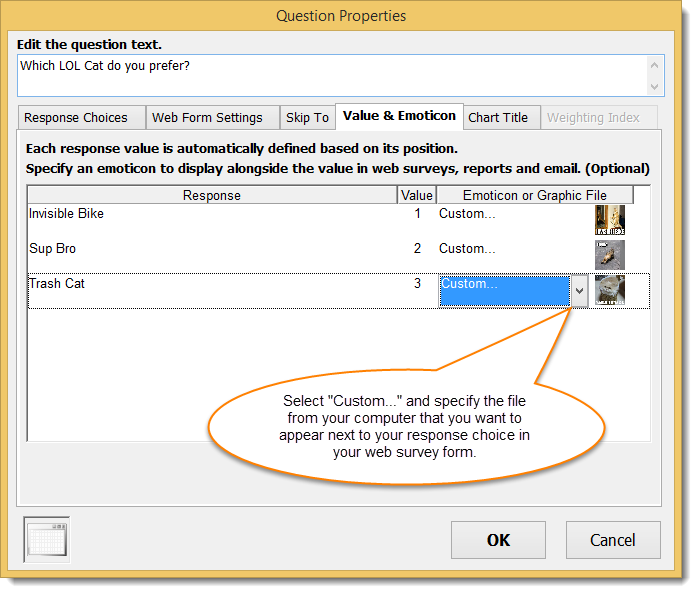
We just added improvements to the online survey form. Responses choices can now display an optional graphic image file of your choosing. The graphic image file is automatically displayed in your online survey form in its original size alongside the associated response choice.

To specify the graphic image file:
  1. Select the Value & Emoticon tab in the question properties sheet
  2. Select "Custom..." from the Emoticon or Graphic File list
  3. Select a graphic file from your computer
  4. Select OK to save your preference

Note: Although the graphic image appears in the question properties sheet as a thumbnail, it will appear in your online survey form in its actual size. You can preview the actual image by moving your mouse pointer over the thumbnail image in the question properties sheet.
Picture

How To Acquire the Update

To acquire SurveyGold application updates:
  1. Select About in the SurveyGold application tool bar. 
  2. Perform the Update SurveyGold action.

A software update dialog appears and the process begins by downloading the software directly from the SurveyGold software update server. After the software update files are downloaded to your computer, the process automatically installs the software updates. Normally, this entire process only takes a moment. Your data is not affected in any way as a result of software updates.

Success Story: An Organizational Assessment Tool That Helps Leaders to Get the Best Out of Their People

4/17/2014

 
I recently had the pleasure of speaking with Mark Vandeneijnde of Zürich, Switzerland. Mark is the co-founder of the global assessment and coaching organization BEING At Full Potential, a fascinating company that specializes in assessing and unlocking human potential in organizations. 
Picture
I am a big believer in the vast, yet often untapped, creative potential of business. Part of my vision, as a coach and researcher, is to help organizations get in touch with a greater sense of purpose and work with them to create the optimal conditions for it to unfold. 

- Mark Vandeneijnde, BEING At Full Potential

SurveyGold Provides an Effective and Efficient Quantitative Assessment Tool

Mark uses SurveyGold to underpin a Human Potential Assessment Tool used by business leaders who want to deliver more value from their organizations. Mark uses the insights gathered and analyzed by SurveyGold to help business leaders better understand and act on the untapped human potential in their organizations.

I asked Mark about the business problem he was solving using SurveyGold. He tells me, "We needed to develop a quantitative assessment tool that could accurately measure performance in this area and put the necessary data on the table to enable the right conversations. We also needed an effective way to distribute the survey and analyze the data afterwards. Without SurveyGold, the efficient delivery of our assessment tool would not have been possible. We are very satisfied with the SurveyGold solution. It is user-friendly, flexible, cost effective and the customer support is excellent. We feel very happy to have made this choice."

Emphasizing the HEART in Business

I also discovered that BEING At Full Potential acknowledges the importance of "HEART" in business. The following video is a summary of the research Mark has done recently. It serves to put some meat on this broad and fuzzy topic. Mark's hope is that it opens a conversation on how more "HEART" can concretely benefit your organization. I found the topic to be very insightful and interesting.  

Human Potential Assessment Tool
About BEING At Full Potential

SurveyGold Is Not Vulnerable to the Heartbleed Bug

4/9/2014

 
The Heartbleed Bug has been a troublesome headline in the news recently. We want to assure you that all servers used by the SurveyGold survey solution are running OpenSSL version 1.0.1g, the most current version of OpenSSL. As a result, our servers are not vulnerable to the Heartbleed Bug which has garnered so much worldwide attention today.

<<Previous
Forward>>

    RSS Feed

    Picture

    Chuck Boudreau

    As the author of SurveyGold, it's my pleasure to serve and collaborate with the diverse community of SurveyGold survey authors, surveyors and respondents.


    Would you recommend us?

    What should we add next?


    Archives

    October 2021
    September 2019
    January 2019
    October 2018
    July 2016
    May 2016
    March 2016
    February 2016
    October 2015
    September 2015
    June 2015
    May 2015
    April 2015
    March 2015
    December 2014
    September 2014
    June 2014
    April 2014
    March 2014
    February 2014
    January 2014
    December 2013
    November 2013
    October 2013
    September 2013
    August 2013
    May 2013
    March 2013
    February 2013
    January 2013
    December 2012
    November 2012
    October 2012
    September 2012

    Categories

    All
    360 Degree Assessments
    Alert
    Analyze Results
    Apple
    Assessment Tools
    Author Assitance
    Authoring Surveys
    Autism
    Award
    Backup Data
    Banner Tabulations
    Bcba
    Behavior Intervention Plan
    BEING At Full Potential
    Best Practices
    Bip
    BR&E
    Bug Fix
    Business Retention & Expansion
    Buyer Criteria
    Career Solutions Group
    Charts
    Coding
    Coding Techniques
    Conduct Survey
    Consulting Services
    Dashboard
    Data Backup
    Data Encryption
    Data Entry
    Data Ownership
    Data Privacy
    Data Recovery
    DDOS
    Demographic Reports
    Design Philosophy
    Due Diligence
    Email Surveys
    Employee Surveys
    End Of Life Announcement
    End-of-life Announcement
    End-of-support Announcement
    Excel
    Exit Strategy
    Feature Comparison
    Field Surveyor Network
    Field Surveys
    Filter
    Free Survey Software
    Graphs
    Heartbleed
    Hidden Disabilities
    Hyperlink
    Image
    Improving Response Rates
    In Person Surveys
    In-person Surveys
    Inside-out Thinking
    Interview Surveys
    IOS
    IPad
    Label
    Likert Scale
    Long-running Survey
    MailChimp
    Manufacturing Shop Floor Surveys
    Market Data
    Matrix Of Questions
    Microsoft Word
    Mobile Surveys
    Multiple Survey Form Factors
    Online Service Status
    Online Survey
    Open-ended Questions
    Operating System
    Organizational Assessment
    Organizational Assessment Tools
    Outside-in Thinking
    Paper Survey
    PCI
    PCI Compliance
    Peanut Labs
    Personal Engagement
    Pitfalls
    Pragmatic Marketing
    Pre-populating Responses
    Price Comparison
    Privacy
    Product Road Map
    Psychiatry
    Qualitative Analysis
    Qualitative Coding
    Qualitative Research
    Quantitative Research
    Questionnaire Analysis
    Quirks
    Reinstalling Surveygold
    Reponse Value
    Reports
    Research
    Respondent Cooperation
    Respondent Satisfaction
    Response Score
    Restore Data
    Review
    Review Sites
    Sacred Trust
    Safeguards
    Security
    Server Maintenance
    Service Status
    Setup Survey
    Software Update
    Spell Check
    Spss
    Statistical Analysis
    Subscription Billing
    Success Story
    Survey Assistance Service
    Survey Consulting Services
    Survey Design
    Survey Distribution
    Surveygold
    Surveygold Behavior Analysis Edition
    Survey Methods
    SurveyMonkey
    Survey Ownership
    Survey Pulse
    Survey Reporting
    Survey Response Sharing
    System Architecture
    Tagging
    Team Sport
    The Ohio State University
    Tips
    TLS
    Toptenreviews
    Tourettes
    Transfer
    Transfer Survey
    Transfer Survey Ownership
    Universities
    Uptime
    Url
    User Guide
    View Results
    Website
    Windows 10
    Windows 11

© 1998-2025 Golden Hills Software  |  Privacy  |  Contact  |  Search

Security Seals